

Workspaces
A workspace is an operational unit within your organisation. Each workspace operates in a specific country, language, and currency — making it straightforward to manage teams across regions or business units.
The workspaces page
Section titled “The workspaces page”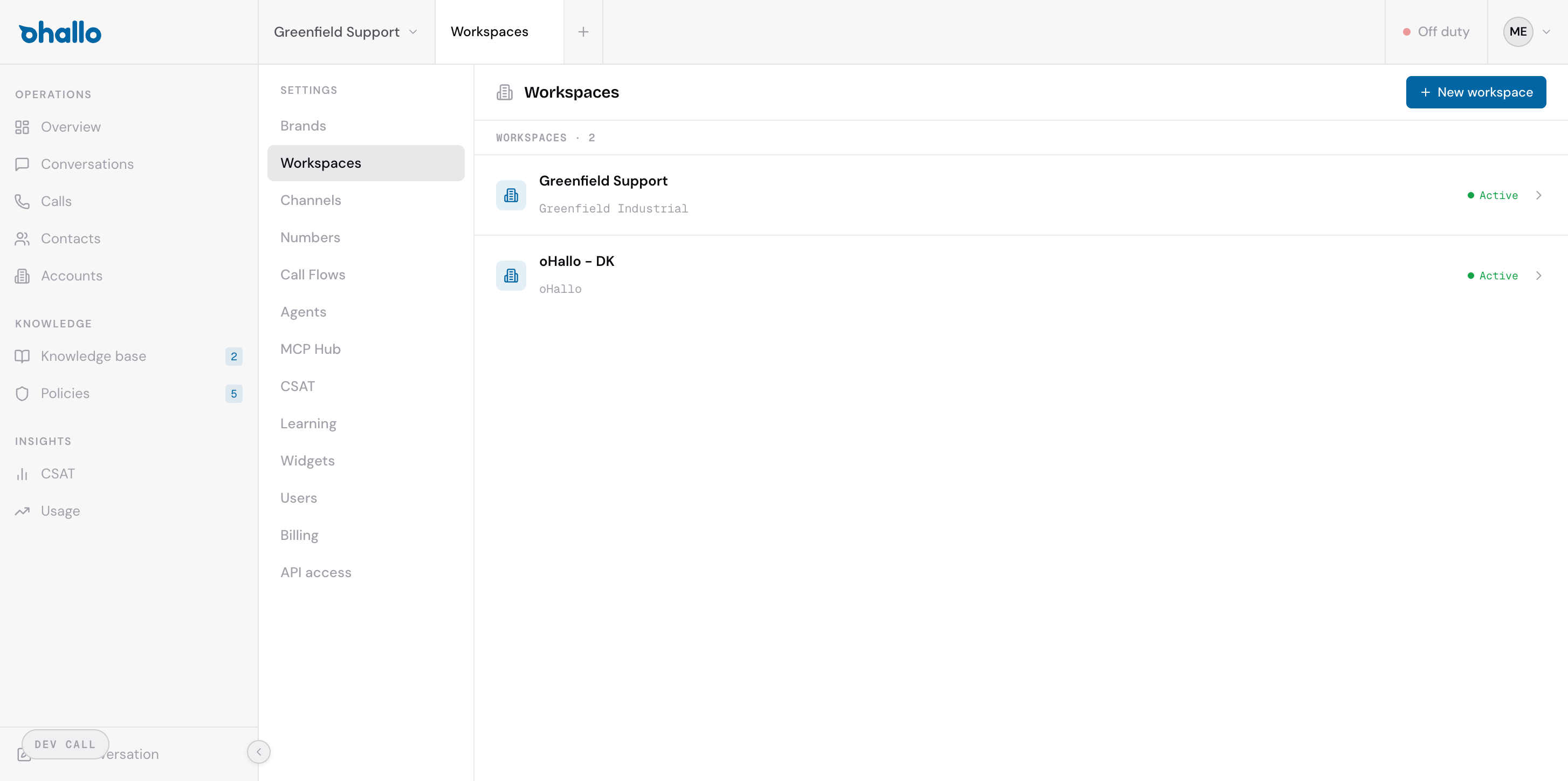
Go to Settings — Workspaces to see all your workspaces. Each row shows the workspace name, the brand it belongs to, and its status (“Active” or “Inactive”). The total workspace count is displayed at the top of the list.
Creating a new workspace
Section titled “Creating a new workspace”Click the + New workspace button in the top-right corner. Fill in the settings described below and save.
Workspace settings
Section titled “Workspace settings”| Setting | Description |
|---|---|
| Name | A name that identifies this workspace. Use something descriptive — for example, “DACH Support”, “Benelux Operations”, or “UK Sales”. |
| Brand | Which brand this workspace belongs to. The brand determines the company identity and tone used in customer communications. |
| Country | The operating country for this workspace. Affects language defaults and regulatory settings. |
| Operating language | The language the AI uses when communicating with customers through this workspace. |
| Document language | The language used for generated documents such as quotes or confirmations. |
| Currency | The currency used for pricing and invoicing within this workspace. |
| Customer type | Whether this workspace handles B2B (business-to-business) or B2C (business-to-consumer) interactions. This affects how the AI approaches conversations and what information it prioritises. |
| Legal name | Your company’s legal entity name for this workspace. Used in formal communications and documents. |
Switching between workspaces
Section titled “Switching between workspaces”Use the workspace dropdown in the top navigation bar to switch between workspaces. When you switch, the entire dashboard — conversations, contacts, accounts, knowledge base, and policies — updates to show data for the selected workspace.
Each workspace maintains its own set of conversations, contacts, and operational data. This separation ensures that teams working in different regions or divisions see only the information relevant to them.
When to use multiple workspaces
Section titled “When to use multiple workspaces”Common scenarios for creating separate workspaces include:
- Regional teams — a workspace for each country or region your business operates in, each with its own language and currency
- Business divisions — separate workspaces for different product lines or departments
- Customer segments — one workspace for B2B clients and another for B2C, each with different communication styles and workflows
Editing a workspace
Section titled “Editing a workspace”Click on any workspace in the list to open its settings. Changes to language, currency, or customer type settings affect all future conversations and documents in that workspace.