

Reading a Conversation
When you open a conversation from the list, you see the full detail view. This page shows the complete message history and gives you the controls you need to respond or take action.
The detail view
Section titled “The detail view”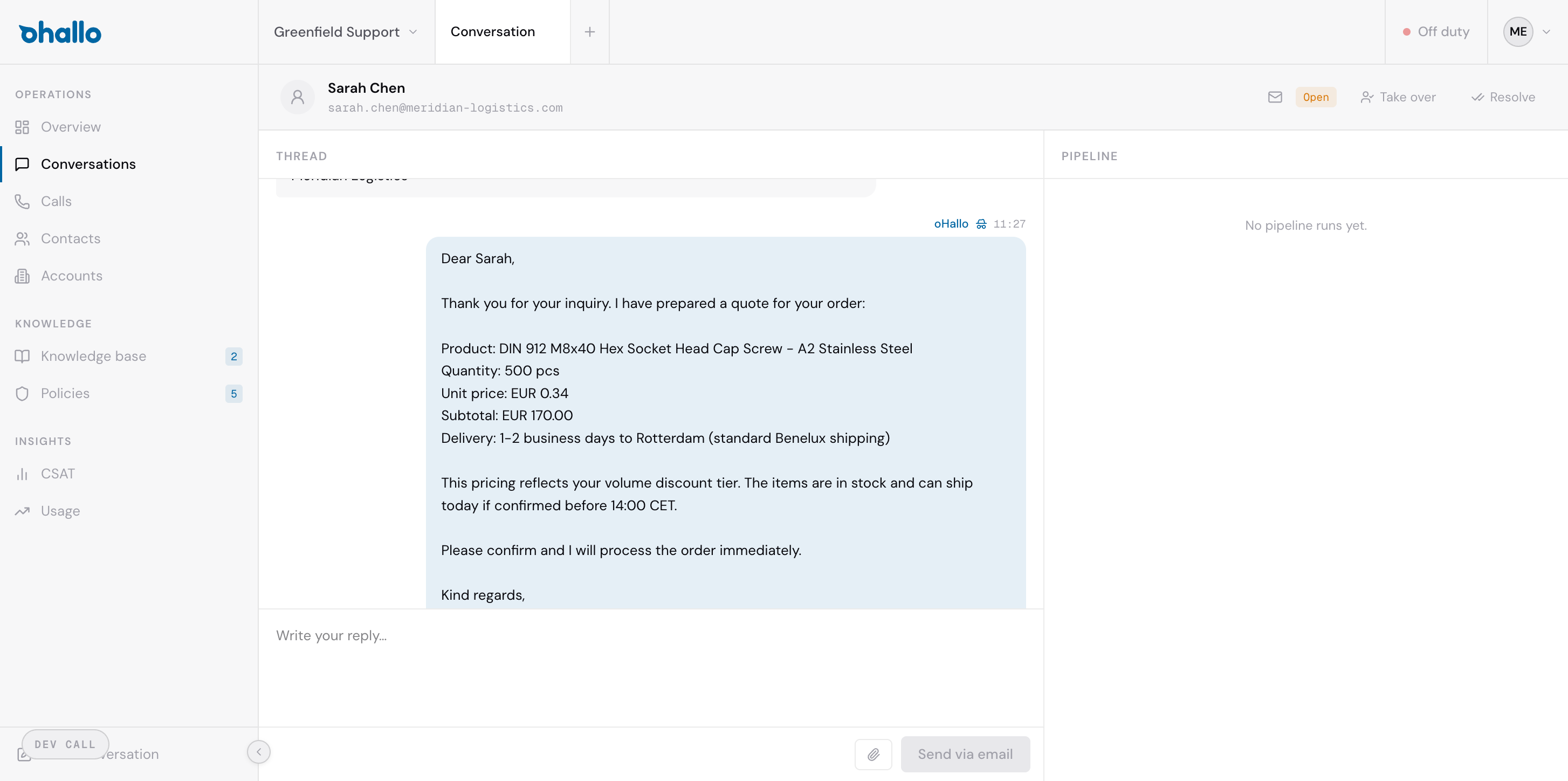
Conversation header
Section titled “Conversation header”At the top of the page, you will see the contact’s name and email address. This tells you who the conversation is with at a glance.
Action buttons
Section titled “Action buttons”In the top right corner of the header, you will find the main action buttons:
- Take over — Switches the conversation from AI-managed to human-managed. The AI stops processing, and you handle replies from this point forward.
- Resolved — Marks the conversation as complete and closes it.
These buttons change depending on the current state of the conversation. For example, if you have already taken over, you will see a Release button instead.
Message thread
Section titled “Message thread”The centre of the page displays the full message thread in chronological order. Each message is shown in a bubble:
- Customer messages — Messages from the customer appear on the left or in a distinct style so you can easily tell them apart from outbound messages.
- Outbound messages — Replies sent by the AI or by a human agent appear in a blue bubble. A label indicates whether the message was sent by oHallo (the AI) or by a specific team member.
Each message shows who sent it, when it was sent, and the full content including any product details, pricing, or other information.
Right sidebar — Pipeline
Section titled “Right sidebar — Pipeline”On the right side of the detail view, you will find the pipeline panel. This shows metadata about the conversation:
- Status — The current status of the conversation (Open, In progress, or Resolved).
- Pipeline stage — Where this conversation sits in your workflow pipeline, giving you additional context about its progression.
Reply box
Section titled “Reply box”At the bottom of the page, there is a text area where you can write a reply. Type your message and click Send via email to deliver it to the customer. The reply is sent through the same channel the customer used to contact you.
The reply box also includes formatting controls (accessible via the icons next to the text area) so you can structure your response clearly.
Typical workflow
Section titled “Typical workflow”- Open a conversation from the list.
- Read through the message thread to understand the context.
- If the AI has handled it well, no action is needed — the conversation will continue automatically.
- If you need to intervene, click Take over, then write your reply in the reply box and click Send via email.
- When the issue is resolved, click Resolved to close the conversation.