

Navigating the Dashboard
When you sign in to oHallo, you land on the Overview page. This guide walks you through every part of the interface so you can find what you need quickly.
The Overview page
Section titled “The Overview page”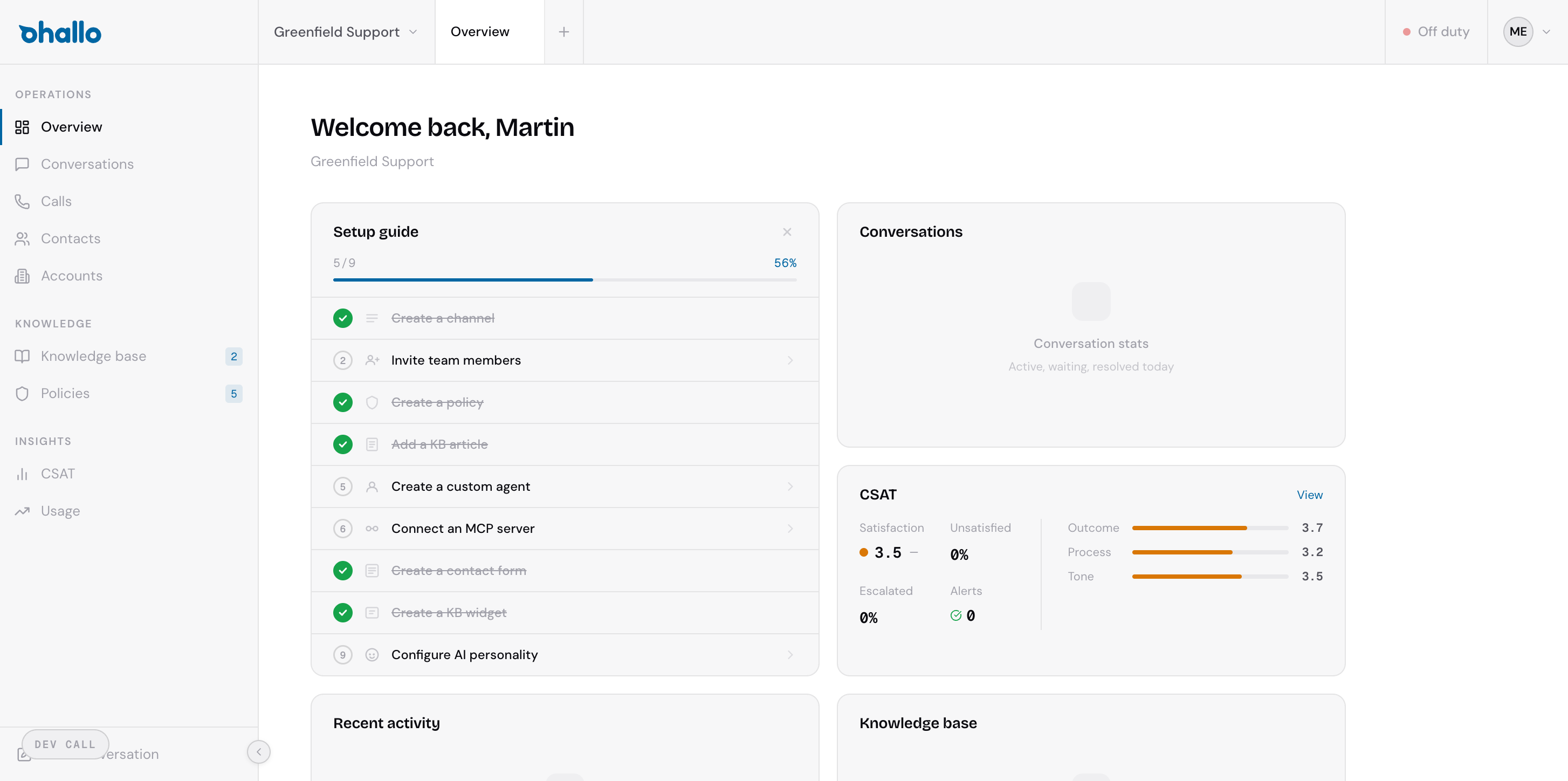
The Overview page is your home base. It gives you a snapshot of what is happening across your workspace:
- Setup guide — A checklist of onboarding steps (create a channel, invite team members, add knowledge base articles, and more). The progress bar at the top shows how far along you are. You can dismiss the guide once you have completed it.
- Conversations — A summary of your conversation volume and current status breakdown so you can see how many conversations are open, in progress, or resolved.
- CSAT — Your customer satisfaction score at a glance, with a breakdown by rating level (Excellent, Good, Fair, Poor). Click View to open the full CSAT dashboard.
- Recent activity — The latest events across your workspace, so you can quickly catch up on what has happened.
- Knowledge base — Coverage indicators showing how well your knowledge base supports incoming queries.
The sidebar
Section titled “The sidebar”The left sidebar is your main navigation. It is organised into sections:
Operations
Section titled “Operations”- Overview — The dashboard described above.
- Conversations — Your conversation inbox. All inbound and outbound customer conversations appear here.
- Calls — Your call queue and call history for voice interactions.
- Contacts — Individual people who have contacted your team.
- Accounts — Companies or organisations that your contacts belong to.
Knowledge
Section titled “Knowledge”- Knowledge Base — The articles, FAQs, and snippets that the AI uses to answer customer questions.
- Policies — The business rules the AI must follow when handling conversations.
Insights
Section titled “Insights”- CSAT — Detailed customer satisfaction reports and trends.
- Usage — Conversation volumes, AI activity, and platform usage metrics.
The top bar
Section titled “The top bar”The top bar runs across the top of every page and contains several controls:
Workspace switcher
Section titled “Workspace switcher”The dropdown at the top left (next to the oHallo logo) shows the name of your current workspace — for example, “Greenfield Support.” Click it to switch between workspaces if your organisation has more than one. Each workspace has its own conversations, channels, knowledge base, and settings.
Tab strip
Section titled “Tab strip”Next to the workspace switcher, you will see a tab strip. oHallo supports multi-tab browsing within the application. When you open a conversation or navigate to a new page, it can appear as a tab, letting you move between items without losing your place.
Duty status toggle
Section titled “Duty status toggle”In the top right corner, you will find the duty status toggle. It shows either “On duty” or “Off duty.” Toggle this to signal whether you are actively available to handle escalated conversations. When you are off duty, the system will not route attention items to you.
Account menu
Section titled “Account menu”The circular icon at the far right of the top bar opens your account menu. From here you can access your profile settings, manage your account, or sign out.
Workspaces
Section titled “Workspaces”A workspace is your operational environment within oHallo. It is tied to a specific brand, country, and language. Everything inside a workspace — conversations, contacts, knowledge base entries, channels, and settings — is scoped to that workspace.
Most teams start with a single workspace. As your organisation expands to new regions or brands, you can create additional workspaces and switch between them using the workspace dropdown in the top bar.
To learn more about creating and configuring workspaces, see the Settings documentation.