

CSAT Settings
CSAT (Customer Satisfaction) settings control how and when oHallo collects feedback from your customers. You can choose which channels prompt for ratings, customise the feedback message, and set how long rating links remain valid.
The CSAT Settings page
Section titled “The CSAT Settings page”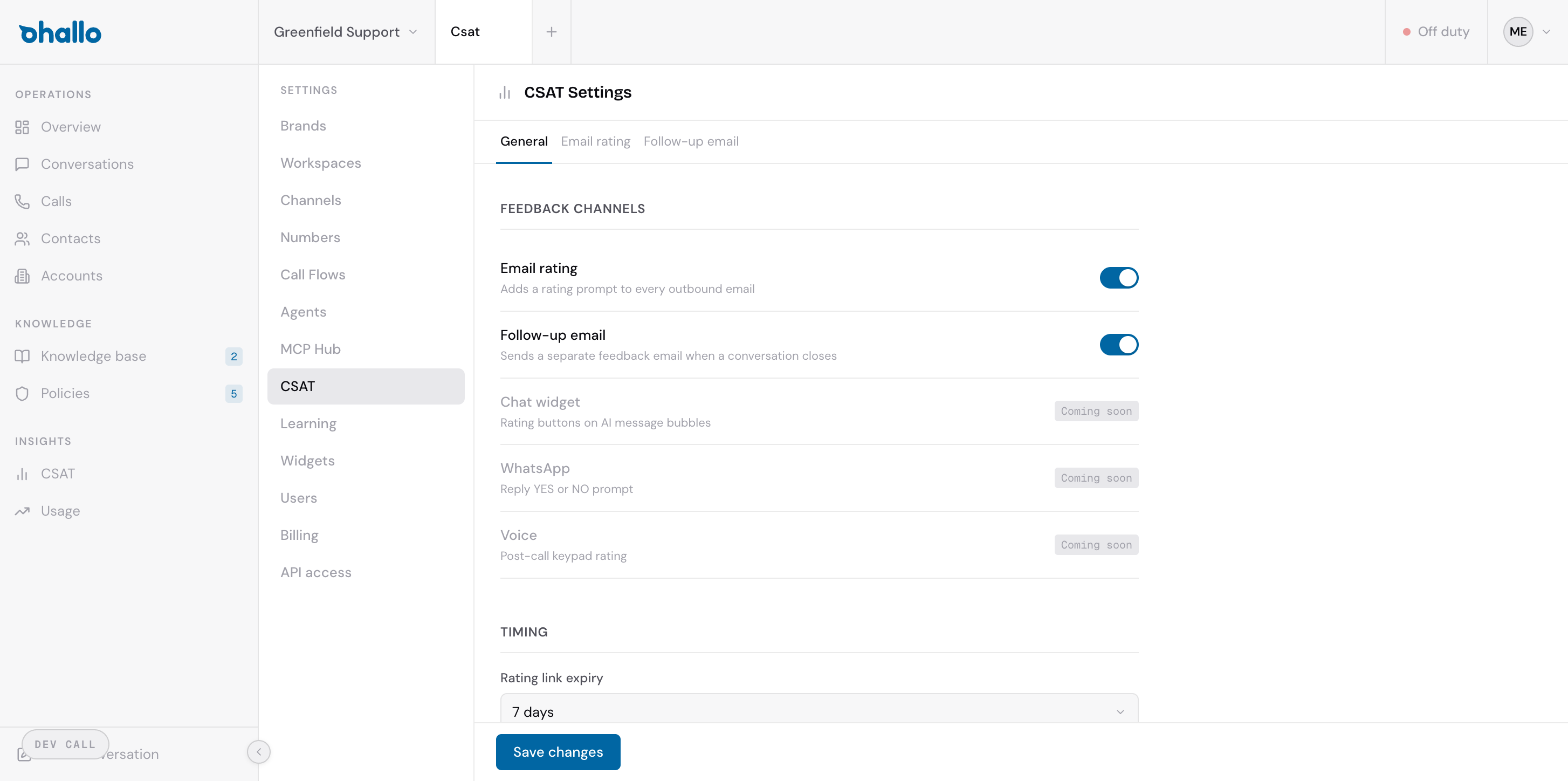
Go to Settings — CSAT to configure your feedback collection. The page has three tabs: General, Email rating, and Follow-up email.
General tab
Section titled “General tab”Feedback channels
Section titled “Feedback channels”Choose which channels collect customer satisfaction ratings. Each channel can be toggled on or off independently.
| Channel | How it works | Status |
|---|---|---|
| Email rating | Adds a rating prompt to every outbound email. Customers can rate the interaction directly from the email they receive. | Available |
| Follow-up email | Sends a separate feedback email when a conversation is resolved. This is a standalone survey sent after the conversation ends. | Available |
| Chat widget | Rating buttons on AI message bubbles in the chat widget. | Coming soon |
| Reply YES or NO prompt sent via WhatsApp. | Coming soon | |
| Voice | Post-call keypad rating (e.g. “Press 1 for satisfied, 2 for unsatisfied”). | Coming soon |
Timing
Section titled “Timing”- Rating link expiry — how long the rating link in emails stays valid. The default is 7 days. After this period, customers who click the link will see a message that the rating period has expired.
Email rating tab
Section titled “Email rating tab”Customise the rating prompt that appears in every outbound email. This is the in-line block that asks customers to rate the interaction without leaving their inbox.
You can adjust:
- The prompt text (e.g. “How was your experience?”)
- The rating scale labels
- The visual appearance of the rating block
Changes apply to all future outbound emails across all channels that have email rating enabled.
Follow-up email tab
Section titled “Follow-up email tab”Customise the standalone feedback email that is sent after a conversation is resolved. This is a separate message — not part of the conversation thread — that asks the customer for a more detailed rating.
You can adjust:
- The subject line
- The email body text
- The timing of when the follow-up is sent after resolution
Thresholds tab
Section titled “Thresholds tab”| Setting | Default | Description |
|---|---|---|
| Resolution failure threshold | 2.0 | Conversations scoring below this are flagged as resolution failures. |
| Low composite threshold | 2.5 | Scores below this trigger quality alerts and count toward circuit breakers. |
| Baseline overrides | Platform defaults | Override baseline expectations for Outcome, Process, and Environment dimensions. |
Circuit breaker settings
Section titled “Circuit breaker settings”| Setting | Default | Description |
|---|---|---|
| Circuit breaker count | 3 | Low-scoring conversations within the window needed to trigger a circuit breaker. |
| Circuit breaker window | 24 hours | The time window for counting low scores. |
When a circuit breaker fires, conversations in the affected scope are routed to humans. Acknowledge and resolve circuit breakers from the CSAT Dashboard.
Saving your changes
Section titled “Saving your changes”After adjusting any settings on the CSAT page, click the Save changes button at the bottom to apply your configuration. Changes take effect immediately for new conversations. Conversations already in progress are not affected.