

API Access
API keys allow external systems, scripts, and integrations to interact with oHallo programmatically. This page is available to users with the Owner or Admin role.
The API keys page
Section titled “The API keys page”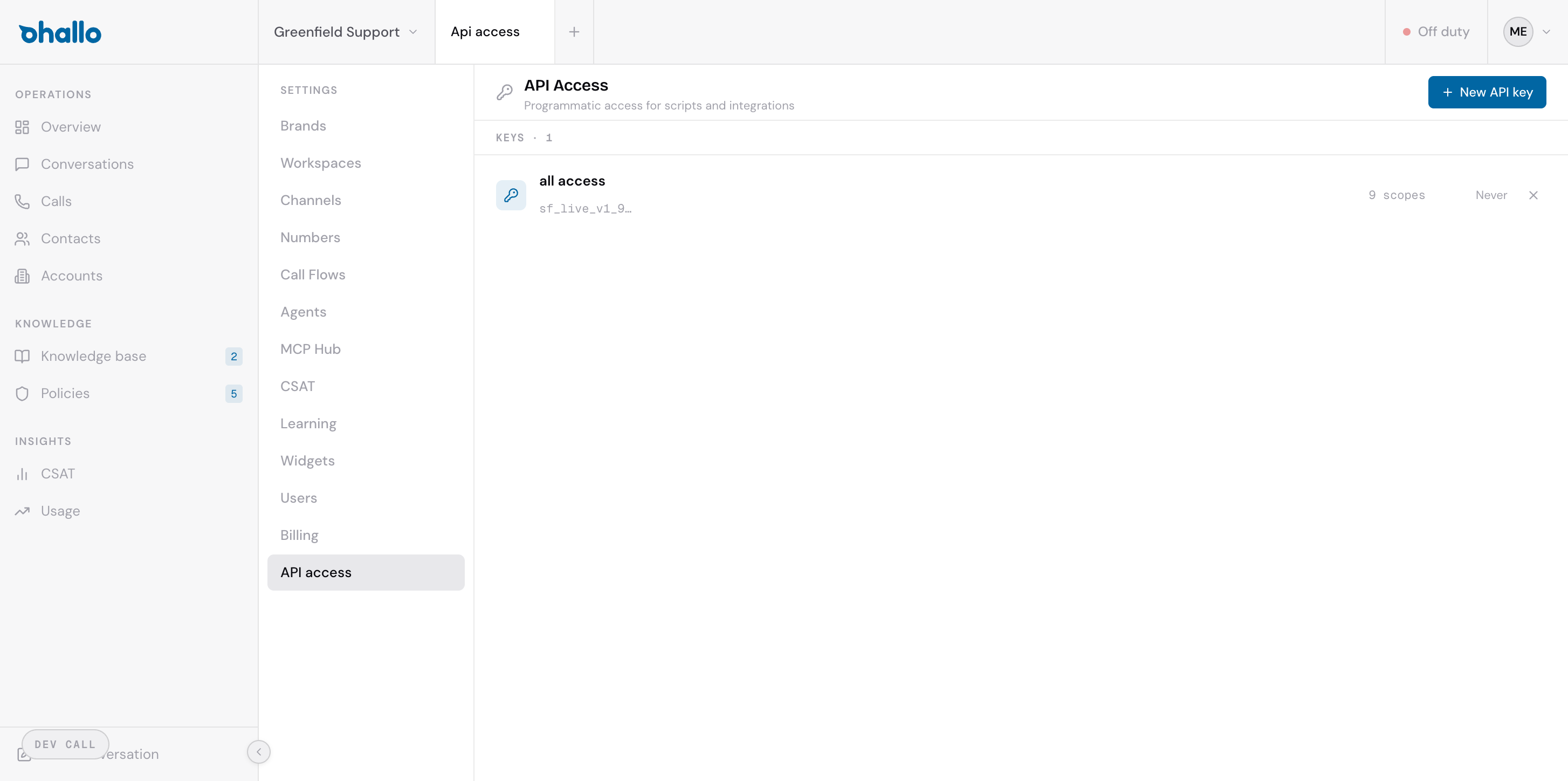
Go to Settings — API access to manage your keys. Each key in the list shows:
- Name — a label you chose when creating the key (for example, “all access” or “CRM sync”)
- Key prefix — the first few characters of the key for identification (for example, “sf_live_v1_…”)
- Scope count — how many permission scopes the key has been granted
- Last used — when the key was last used to make a request, or “Never” if it has not been used yet
Creating a new API key
Section titled “Creating a new API key”- Click the + New API key button in the top-right corner.
- Give the key a descriptive name so you can identify its purpose later.
- Select the scopes you want to grant. Scopes control which parts of oHallo the key can access — for example, conversations, contacts, knowledge base, or accounts.
- Click Create.
The full API key is displayed only once at creation. Copy it immediately and store it in a secure location such as a password manager or secrets vault. You will not be able to view the full key again.
Scopes
Section titled “Scopes”Scopes define what an API key is allowed to do. When creating a key, grant only the scopes it needs — this follows the principle of least privilege and limits the impact if a key is ever compromised.
Common scopes include access to conversations, contacts, accounts, knowledge base entries, and policies.
Revoking a key
Section titled “Revoking a key”To delete an API key, click the X button on the right side of the key’s row. Revoking a key is immediate and permanent — any system using that key will lose access right away.
Before revoking, make sure no active integrations depend on the key. There is no way to restore a revoked key; you will need to create a new one and update your integrations.
Security best practices
Section titled “Security best practices”- Give each integration its own key with only the scopes it needs.
- Rotate keys periodically by creating a new key, updating your integration, and then revoking the old one.
- Never share API keys over email or chat. Use a secure channel or secrets manager.
- Monitor the “Last used” column to identify keys that are no longer in use and revoke them.