

Users and Roles
Your team members are managed from the Users page in Settings. Here you can invite new users, assign roles, and review pending invitations.
The Users page
Section titled “The Users page”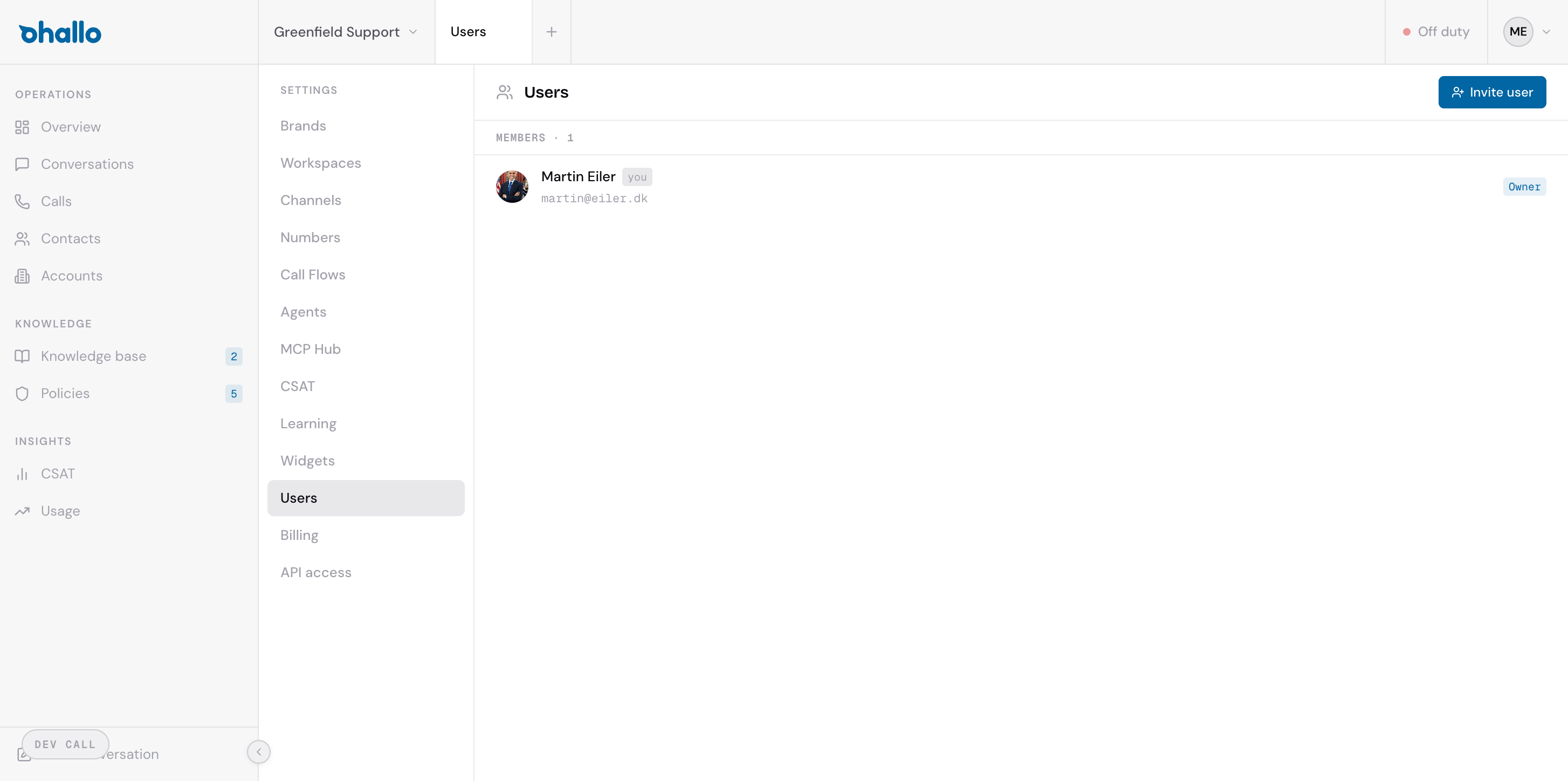
Go to Settings — Users to see everyone on your team. Each row shows the member’s name, email address, and their current role. The total member count is displayed at the top of the list.
Inviting a new user
Section titled “Inviting a new user”- Click the Invite user button in the top-right corner.
- Enter the person’s email address.
- Select the role you want to assign them.
- Send the invitation.
The invited person will receive an email with a link to join your organisation. Until they accept, they appear in the Pending invites section at the bottom of the page.
Roles explained
Section titled “Roles explained”Every user has exactly one role. The role determines what they can see and do within oHallo.
| Role | What they can do |
|---|---|
| Owner | Full control over everything — billing, settings, users, and all conversations. Every organisation has at least one Owner. |
| Admin | Manages users, channels, and agents. Has full access to conversations but cannot manage billing or subscription settings. |
| Billing | Finance only — can view and manage the subscription, invoices, and payment methods. Cannot access conversations or operational settings. |
| Agent | Day-to-day customer care. Can work with conversations, contacts, accounts, knowledge base articles, and policies. Cannot change settings or manage users. |
| Observer | Read-only access to conversations and data. Useful for managers or stakeholders who need visibility without the ability to make changes. |
Changing a user’s role
Section titled “Changing a user’s role”- Click on the user’s name in the list to open their profile.
- Select a new role from the role dropdown.
- Save your changes.
Role changes take effect immediately. The user does not need to log out and back in.
Pending invites
Section titled “Pending invites”Invitations that have not yet been accepted appear in a separate section below the member list. You can see the email address and the role assigned to each pending invite. If an invitation is no longer needed, you can revoke it before the person accepts.